
I decided to write a simple guide on how to install and uninstall user script on Opera after many users keep on asking the same question.
How to install user script on Opera:
Step 1: Create a New Folder on your PC. Rename it. Make sure this folder is safe and did not get deleted by other user on the PC as it will be use to store all user script use in Opera.

Step 2: Open Opera, go to Menu > Settings > Preferences…

Step 3: In Preferences dialog, goto Advanced > Content > JavaScript Options…

Step 4: In JavaScript Option dialog, under User JavaScript folder, click Choose… to select the folder you just created at Step 1.

Step 5: Click OK to close the JavaScript Option dialog.

Step 6: Click OK to close Preference dialog.

Step 7: Download the user script you want from website such as http://userscripts.org
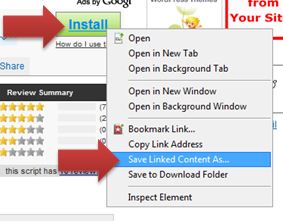
- If you want to download script from userscripts.org, right-click on the Install button and select Save Linked Content As… and save it to the folder you created at Step 1.
- Make sure your file you download is end with “.user.js” for example like “filename.user.js” without the .user.js the script will not work. It is recommanded to rename it to “MouseHuntAutoBot.user.js” so that it is easy to remember later on.
Step 8: Done. Continue to read if you want to know how to edit the script.
Step 9: Go to the folder you created in Step 1. Right-click on the script and select Edit.

- Notepad will be open and it will allow user to edit the script.
Step 10: Edit the script according your need and save it. Reload any page you want to apply the script on your Opera for immediate effect apply.
- If you want to edit the script in future, just repeat the Step 9 and Step 10.
How to uninstall user script on Opera:
Super duper easy, just go to the folder where you save all the script for Opera (like the one created in Step 1) and delete the script from the folder. Done!
Hope this post can help to save some trouble facing by the new users.
by Ooi Keng Siang via Ooiks’s Blog
 Ooiks's Blog
how can I turn off the alarming sound in Opera when the King’s Credit is up?
LikeLike
how to edit the script..i dunno how to edit so my opera cant use the bot
LikeLike
For Opera, you can always go to the folder where you store all the script. Right click the script and open using notepad to edit the script and save it.
LikeLike
ya..but i dunno how to change the things inside the notepad tat can make my opera can oso use bot
LikeLike
Hmm, did you opera can run the script at the first place?
LikeLike
cannot download n install….when i press install…it come out a blank page with alot of code….abit fimiliar to the notepad of the script
LikeLike
Read the step 7 carefully, you should right click and save it, not left click open the script in your browser.
LikeLike
i noe…i have already saved it…then need to go to the folder whr u save n right-click then edit…it come out a notepad, but i duunno how to change the configuration inside it…
i tried double click it but oso failed….
LikeLike
if you want to change your random time maybe something like 10 – 60 seconds only then edit
var hornTimeDelayMin = 10;
var hornTimeDelayMax = 60;
or if you want to enable aggressive mode then edit
var aggressiveMode = true;
this is just some example you can do with the script.
LikeLike
i already follow all instruction to save the script in to another folder but…the problem is hw to install it…i wanna use the bot for my opera badly…
LikeLike
If you follow all the step properly and you have the script with filename.user.js in the target folder, then you should get it working
LikeLike
but my mine is wat 55005.user
LikeLike
change it to “MouseHunt AutoBot.user.js”
LikeLike
i noe…i have already saved it…then need to go to the folder whr u save n right-click then edit…it come out a notepad, but i duunno how to change the configuration inside it…
i tried double click it but oso failed….
LikeLike
I’ve followed all the steps carefully, but the script doesn’t appear even after reloading the page. Does this clash whilst using other browsers?
LikeLike
No, it won’t clash with other browser. Make sure the script you download is end with .user.js
LikeLike
already followed your instruction above but still the script wont appear in my hunter camp. what do you think is the problem? and yes, my script is end with user.js in a new folder and so on.
LikeLike
Same Prob as shotieun. I did everything but the thing not working… Please help 😀
LikeLike
it doesnt work on opera 11.52 pls help me
LikeLike
Let me have a look at this.
LikeLike
is it usable for mac? :O
LikeLike
Yes
LikeLike
why it doesn’t work on opera 12.15 although i have follow all of the steps?
LikeLike
recently just updated to Opera v12.16 and my mousehunt autobot had stop functioning. I noticed that the website had changed to “Secure” website and i suspect this disable the bot function. Are you able to advise how to go about. Thanks.
LikeLike
it doesnt work on opera anymore?
LikeLike