
I decided to write a simple guide on how to install and uninstall user script on Firefox after many users keep on asking the same question.
How to install user script on Firefox:
Step 1: You need to make sure you have Greasemonkey extensions installed on Firefox.
- If you do not have Greasemonkey installed, you can download Greasemoneky at https://addons.mozilla.org/en-US/firefox/addon/748/
Step 2: Download the user script you want from website such as http://userscripts.org

- If you want to download script from userscripts.org, just click on the Install button.
- If you download script from other website, you might want to save it your desktop and drag the script to firefox to install.
Step 3: Click on the Install when Greasemonkey prompt you to confirm install the script to Firefox.

Step 4: Done! Continue to read if you want to know how to edit the script.
Step 5: Go to Menu on top of Firefox then Tools > Greasemonkey > Manage User Scripts…
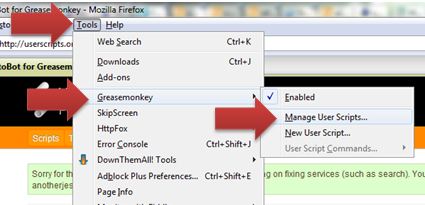
Step 6: Select the script you want to edit and click Edit button on the bottom of the dialog.

- If this is the first time you edit user script, you might prompt by Windows asking which software use to open the script. You should use notepad to edit the script (C:Windowsnotepad.exe).
Step 7: Edit the script according your need and save it. Reload any page you want to apply the script on your Firefox for immediate effect apply.
Step 8: Done edit!
- If you want to edit the script in future, just repeat the Step 5 until Step 8.
How to uninstall user script on Firefox:
Step 1: Go to Menu on top of Firefox then Tools > Greasemonkey > Manage User Scripts…
Step 2: Select the script you want to edit and click Uninstall button on the bottom of the dialog.

Step 3: Done!
Hope this post can help to save some trouble facing by the new users.
by Ooi Keng Siang via Ooiks’s Blog




 Ooiks's Blog