Imagine Cup 2011 – Students Solve World Toughest Problem Through Game

In case if you don’t know about Imagine Cup and Game Design competition, Imagine Cup is the world’s premier student technology competition and in Game Design, Imagine Cup challenge the students to solve the world problem through game. Aren’t it is so cool that we can solve the world problem through game?

How can we solve the world problem through game? Although I’m an application developer and a gamer too, but I can’t really come out any idea how game can do that. Every year, the students in Imagine Cup, Game Design category impress me with their great idea. Some of the game might be simple, but how they relate the game and the problem are very creative. I’m looking forward to meet them and learn about their idea in Imagine Cup 2011 Worldwide Final at New York City.

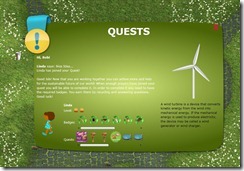
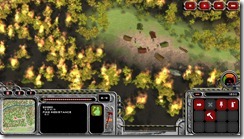
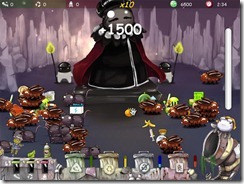
Meanwhile, if you are interested to how students can solve world problem through game this year, meet the finalist of Game Design in Imagine Cup 2011:

Want more? Check out the following too with more detail:

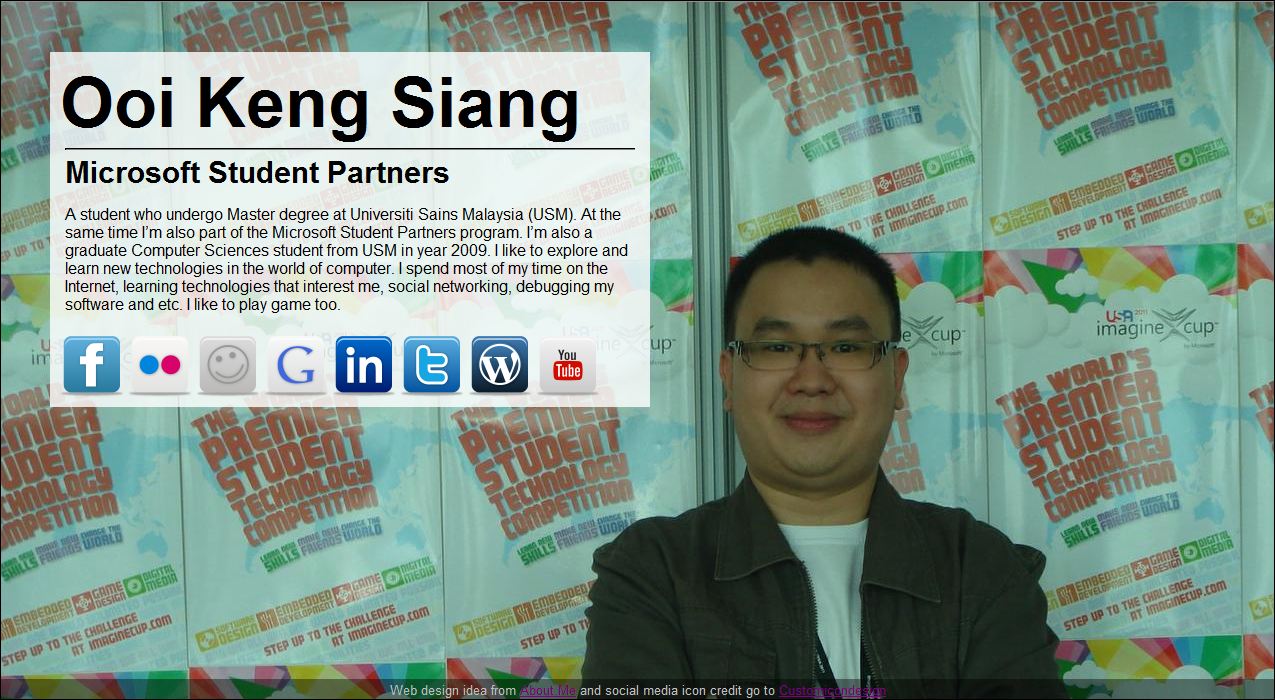
Creating My Own Simple Business Card Website

I always wanted to create a very simple business card style web page displaying my basic bio and links to all my social networking site. I admit I only thinking about this without any action for quite some time as I was kind of lazy to pick up HTML and CSS (all the while I only do Silverlight and desktop application development), and I’m not good in design seriously.

One day, I came across About.Me which let user create a simple business card website with user’s selected picture as background.  It is simple and easy. It is just what I want all this time. But a big problem I facing is that I can’t use my own domain name on my profile on the website. Besides, there is also a design flaw in the website as it can’t show your bio correctly if you have a small screen device like netbook.

With the idea from About.Me, I build my own business card website while picking up some HTML and CSS knowledge. I also want some big icons for the link to other social networking too, so I go get one from IconsPedia. It is not as hard as I though. It only take me a day to do it. Simple and easy. Check it out here.

I’m thinking to add in twitter status update and resume link too. Let see when I can have some free time and I kick off my lazy bug on my body first.

by Ooi Keng Siang via Ooiks’s Blog

Imagine Cup Social Media Team – MSPs Head to New York City

Just one more month away from Microsoft Imagine Cup Worldwide Finals in New York City in this July. For those of you who are not already aware of the event, the Imagine Cup is the world’s premier student technology competition. More than 400 students from around the world will participate in the worldwide finals event and represent their countries.

This year I have a very special mission in Imagine Cup Worldwide Finals. I won’t be competing in any category nor challenge, but I will be attending as one of the Microsoft Student Partners Social Media Team. As a member of the Social Media Team, I will be responsible for raising awareness about the Imagine Cup and helping to tell the story of innovative students around the world. To learn more about the event, be sure to follow @imaginecup on Twitter and Microsoft Imagine Cup on Facebook. Also, I’ll be posting to this blog, sharing news and updates from my Facebook page and Twitter account.

I will be joined in New York City by 24 other Microsoft Student Partners who will be part of the social media team. Follow all of the MSPs on their journey to New York City by following this Twitter list.

by Ooi Keng Siang via Ooiks’s Blog


Step by Step Deploying Orchard to Windows Azure

Although you can find a tutorial regarding Deploying Orchard to Windows Azure at Orchard project web page, but I found that the page is not so friendly for those who came across Windows Azure for the first time. So I re-write part of the tutorial especially for those who used / learn Windows Azure for the first time. I also include screen shot for each step so that you know where to click and so on.

This tutorial divided into:

  • Building Orchard Package
  • Setting Up Windows Azure Storage Account
  • Setting Up Azure SQL Database
  • Setting Up Windows Azure Hosting
  • Moving From Local Host to Windows Azure


Building Orchard Package

This section show you how you can download the latest Orchard’s project source code and build the Orchard package for Windows Azure. If you want the Orchard package that I had already build, you can grab it here (Build on 17th of May 2011) or through official website and jump to step 7 instead.

Step 1: Download and install TortoiseHg. Tortoise will be used to download the source code from CodePlex where the Orchard project’s source code store.

Step 2: Create a folder to store the Orchard project’s source code (for example C:/OrchardEnlistment). Then goto the folder and Right-Click > TortoiseHg > Clone

Step 3: As the URL of the source, type “https://hg01.codeplex.com/orchard“. Then click Clone to start copy. Wait until the copy finish.

Step 4: Run Visual Studio Command Promot (2010) in administrator mode. Visual Studio Command Promot (2010) is came together with Visual Studio 2010.

Step 5: Go to the folder where you just download the Orchard source code, and run ClickToBuildAzurePackage.cmd. Then wait until the build complete.

Step 6: When the command completes successfully, the Orchard package for Windows Azure will be available under the artifacts folder (artifactsAzureAzurePackage.zip).

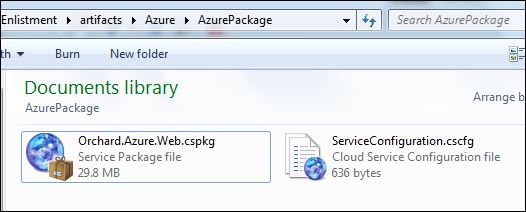
Step 7: Unzip the AzurePackage.zip file. You should have Orchard.Azure.Web.cspkg and ServiceConfiguration.cscfg

Setup Windows Azure Account

First, you need to sign in to Windows Azure Platform (https://windows.azure.com/) first before taking any step below.

Setting Up Windows Azure Storage Account

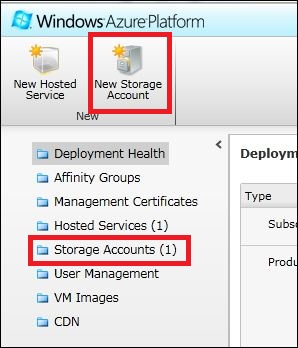
Step 1: Goto Hosted Service, Storage Account & CDN. We need to create a storage to store file or image for Orchard at Windows Azure.

Step 2: Click on New Storage Account to create a new storage for Orchard. You can also click on Storage Accounts to use any existing storage account that you had created before for Orchard.

Step 3: Enter a unique URL for your storage. Then select Create or choose an affinity group and choose Create a new affinity group. Although you can just select a region where you want to host your storage, but create an affinity group will help automatically optimize the location of your storage and azure instance.

Step 4: Enter a name for new affinity group, for example “orchard” and select the location you want to host the storage account and your azure instance later. Then click OK to create the affinity group and click OK again to create the storage account.

Step 5: You should see the storage account you created under the list of your subscription.

Step 6: Go back to the Orchard package that we build just now. Open ServiceConfiguration.cscfg for edit. Notepad will be good enough.

Step 7: We need to replace <Setting name=”DataConnectionString” value=”UseDevelopmentStorage=true” /> with the storage account setting that we had just created. Copy the line below and replace with the original setting (Make sure the open quotation and close quotation is the same with other in the configuration file, some user fail to upload the file later on due to the open and close quotation used was not recognized by xml).

<Setting name=”DataConnectionString” value=”DefaultEndpointsProtocol=https;AccountName=your-account-name;AccountKey=your-account-key” />

Step 8: Replace your-acount-name with the URL that you had given to the storage account (name of your storage account) you had just created and replace your-account-key with your storage account primary access key or secondary access key. You can find those information at your Windows Azure storage account properties.

Step 9: After edit the ServiceConfiguration.cscfg, save it.

Setting Up Azure SQL Database

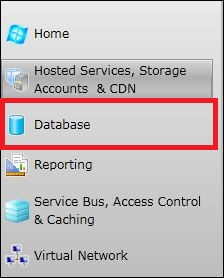
Step 1: Goto Database. We need a SQL database to store Orchard setting like user login information.

Step 2: Select your subscription account and then click on Create to create a SQL server under your subscription account. Skip step 2 – 6 if you already have the SQL server on your azure.

Step 3: Select the region where you want to host your SQL database. Please use the same region with your storage account for optimize performance and cost. Then click Next. Step 4: Enter Administrator login and password for your SQL database. We will need this later when we setup Orchard. Then click Next.

Step 5: Check Allow other Windows Azure services to access this server. If you would like to access this SQL database from your local machine, you need to add your local machine IP address by pressing Add button (you can do that later if you think you want to access the database from your local machine). Then click Finish to create the Azure SQL database.

Step 6: You should see your Azure SQL database listed when it is successfully created.


Step 7: Select your SQL server you had just created and then click on Create to create a SQL database under your subscription account (Click the create under the database not the server).


Step 8: Give your database a name and click OK.

Step 9: You should see your database created when you hit OK.

Setting Up Windows Azure Hosting

Step 1: Goto Hosted Services, Storage Accounts & CDN. We need to create a hosted service to host Orchard in Windows Azure.

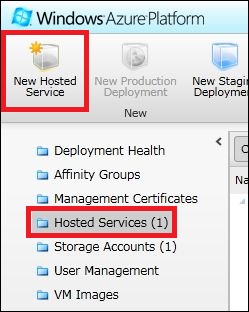
Step 2: Goto Hosted Services and then select New Hosted Service.

Step 3: Do the following step by step.

  • Enter a name for your Windows Azure instance and URL (you will access Orchard through this URL later).
  • Select the affinity group you created for your storage account or select a region where you want to host your service if you did not create any affinity group just now.
  • Use Deploy to stage environment if you don’t want other to access your Orchard hosting easily (Windows Azure will create a very long unique URL for you to access) or use Deploy to production environment where everyone can access to your Orchard hosting through the URL you given just now.
  • Give a deployment name for this hosting, for example “My First Orchard at Azure”.
  • Browse for Orchard.Azure.Web.cspkg that we had build just now in Package location.
  • Browser for ServiceConfiguration.cscfg that we had edited just now in Configuration file.
  • Finally click OK.

Step 4: A warning dialog might be popup saying about only 1 instance of Windows Azure will be created. Just ignore that and continue to create our hosting service.

Step 5: It may take a while for the package to upload to Windows Azure, install and start the instance. Meanwhile, go grab a coffee while waiting. When the status change to Ready, mean your Orchard is ready to use. You can access your Orchard website by following the DNS name.


Setting Up Orchard on Windows Azure

Step 1: Enter the URL where you host your Orchard project on Windows Azure. You can find the URL at DNS name on your hosted service’s properties. You should see the Orchard setup screen.

Step 2: Enter name of your site, user name and password. The select  Use an existing SQL Server (or SQL Express) database. See the next step 3 to 5 if you don’t know what to enter for the connection string.

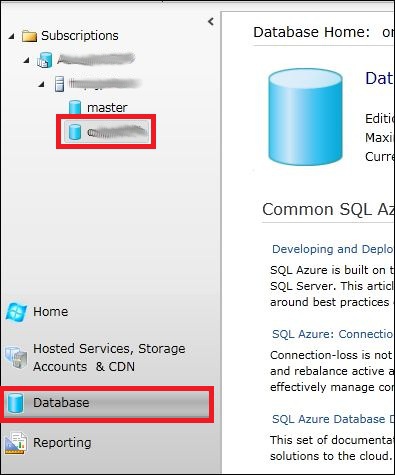
Step 3: Go back to your Windows Azure platform. Goto Database, expend your subscriptions and server then select the SQL database you had created just now.

Step 4: You should see the SQL database properties on the right with Connection Strings field. Click on the button.

Step 5: Copy the ADO.NET connection string to Orchard setup page. Remember to change myPassword to your password for your SQL database.

Step 6: After you have enter everything on the Orchard setup screen. Click Finish Setup and wait for a while. Your Orchard page should be ready after that!


Moving From Local Host to Windows Azure

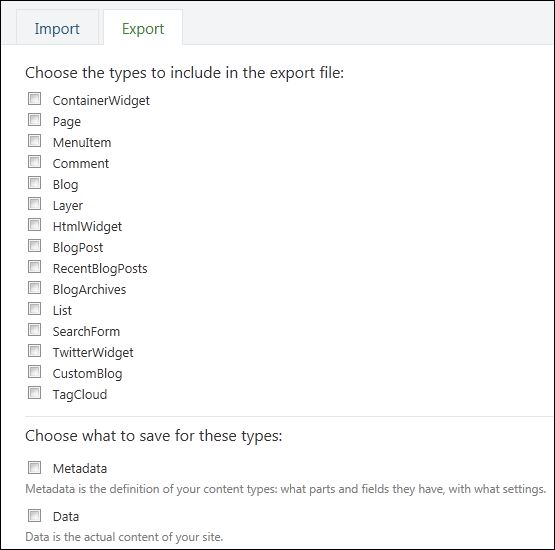
If you had already build your website on Orchard at your local host and now you want to move to it to Windows Azure, you might think that you need to work from zero again. Actually you can export some of the post and setting problem local host and import it to your Orchard at Windows Azure (after you setup Orchard at Windows Azure first). By default, import and export module is installed but disable.

Step 1: Goto Modules in your Orchard.

Step 2: Look for Import Export and Enable it if it is disable.

Step 3: After you enable Import and Export, you will see it is available on your left menu. Goto Import/Export.

Step 4: Now you can export your Orchard setting and data from your local machine to Windows Azure. You need to enable Import Export feature on both side as well. Remember to install all necessary modules because Import Export don’t include modules installation, you need to install manually before import.

That all for the tutorial, hope it can help those who use Windows Azure for the first time.

by Ooi Keng Siang via Ooiks’s Blog


MouseHunt AutoBot 1.20

It is quite some time since the last update. The MouseHunt incorrect timer on Google Chrome had cause a lot of problem to me and I spend a lot of time to fix that. The problem is MouseHunt game screw up itself at Google Chrome (the timer on MouseHunt either stopped or when you click sound horn, it show error instead). MouseHunt AutoBot script is replying on the game to provide the correct information, thus the script screw up together as Mousehunt screw up.

The problem won’t go away unless MouseHunt developer fix it, but nobody seen care to fix that, so I had to do it myself. The new version of the script will now will check the hunters journal if the player had sounded any horn in the past 15 minutes every time after the bot sound or try to sound the horn. If the bot realize there is no hunters journal for the past 15 minutes, it will automatically reload the page and try to fix the problem. If you are using Google Chrome, you might notice the page will reload every time if the bot fail to sound the horn.


OK, enough for those technical talk, happy hunting for all MouseHunt player especially those who use Google Chrome one.

Script Description

MouseHunt AutoBot is an advance user script to automate sounding the hunter horn in MouseHunt application in Facebook, Hi5 and offside MouseHunt page with MouseHunt version 3.0 (Longtail) supported and many other features. In a simple word, bot for MouseHunt. Time of next hunter horn and trap check will show on the webpage title. The time of the next hunter horn will automatically detected without refreshing the page again. Users can customize the script according to their need by themselves such as add extra random time delay before sounding the hunter horn (Please look for UserPreferenceSetting in the script). Users can choose to bot safety with many safety check features which act like a human, or bot aggressively. Part of the script is actually base on Facebook MouseHunt Game Auto Horn Blower.

Main Features

  • Support Mousehunt version 3.0 (Longtail).
  • Automatically sound horn when time’s up with extra random time define by user.
  • Simulate mouse click on the horn image instead of URL sound horn.
  • Automatically detect and retrieval the next horn time without refreshing the page.
  • Show next hunter horn and others timer in the page and title.
  • Stop bot when player move to location different than pre-define location.
  • Safety features such as check horn image is visible or not before sounding the horn. (bot can sound the horn without the horn appear first if aggressiveMode is on)
  • Cross-browsers support.

Platform Support

Browser Support

  • Mozilla Firefox with Greasemonkey add-on (Tested with Mozilla Firefox 4.0 with Greasemonkey 0.9 add-on)
  • Opera (Tested with Opera 11)
  • Google Chrome (Tested with Google Chrome 11.0)

Precautions

  • Use this script at your own risk because AutoBot script is again the rule set by MouseHunt, that is users are not allowed to use any tool to automate sounding the hunter horn.
  • You are reminded not to use your real name or the same name you use in Facebook to post / reply discussion here because some one might go after you and please don’t ask me why I use my real name here.
  • Do uninstall any other MouseHunt auto sound horn scripts before install this script to prevent conflict with this script.

Known Issues

  • Script timer is running faster than MouseHunt provided timer, this is because MouseHunt programmed the timer in a way to have +/- 5 seconds delay.
  • With Aggressive Mode enable, the script timer is running super faster compare with MouseHunt provided timer, this is because it is very aggressive!
  • The script will pause when encounter king’s reward due to MouseHunt 3.0 (Longtail) require user to resolve the captcha first no matter how long the user had idle in the game.
  • Timer will run slower / inaccurate if the browser is running resource hungry application such as flash game.
  • Opera web browser only able to play King’s Reward music once only instead of looping infinity.
  • The page may have minor refresh due to Facebook / Hi5 fetching data from server, it was not related with the script.
  • MouseHunt in game timer and AutoBot horn timer both may run incorrectly in Google Chrome due to bug in MouseHunt game.

How to Install User Script

Download

Download through userscript website.

Changelog

Version 1.20

  • Fix Firefox cannot show link to enable user run script out of iFrame.
  • Fix problem of horn image disappear and cause the timer reset.
  • Fix some URL at hunt camp unable to run bot.
  • Improve data security by storing data on local storage (HTML 5) instead of cookie.
  • Add feature to detect error in timer and reload the page if found (This will solve the Google Chrome incorrect timer problem).
  • Add link to my latest blog post on MouseHunt AutoBot when user click on the AutoBot title.

by Ooi Keng Siang via Ooiks’s Blog

Fish Wrangler AutoBot 1.01 – Firefox Quick Fix

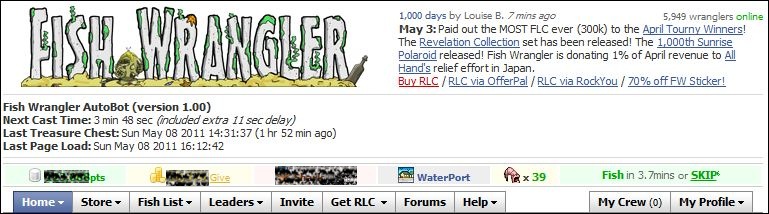
A quick fix for Firefox where it can’t click on NOW! link after the timer reach 0. After some research I only figure out that Firefox did not suppose event click on link compare with other browsers. Thus I force to load the page using url instead of clicking. The result are the same.

Sorry for did not testing much before release. I’m new in the game, so that might be a lot of update following. Catch up with my blog for the latest post.  Enjoy the game.

Script Description

Fish Wrangler AutoBot is a simple user script to automate the process of catching fish in Fish Wrangler application in Facebook. In a simple word, bot for Fish Wrangler. Time of next rod cast will show on the webpage title and page. Users can customize the script according to their need by themselves such as add extra random time delay before casting the rod (Please look for UserPreferenceSetting in the script).


Main Features

  • Automatically cast rod when time’s up with extra random time define by user.
  • Show next rod casting time and others timer in the page and title.
  • Play music when found treasure cheats.
  • Cross-browsers support.

Paltform Support

Browser Support

  • Mozilla Firefox with Greasemonkey add-on (Tested with Mozilla Firefox 4.0 with Greasemonkey 0.9 add-on)
  • Opera (Tested with Opera 11)
  • Google Chrome (Tested with Google Chrome 11.0)

Precautions

  • Use this script at your own risk because AutoBot script is again the rule set by Fish Wrangler, that is users are prohibits the use of auto-refreshers, BOTs, constantly refreshing the Fish Now link.
  • You are reminded not to use your real name or the same name you use in Facebook to post / reply discussion here because some one might go after you and please don’t ask me why I use my real name here.
  • Do uninstall any other Fish Wrangler automation scripts or auto page reload scripts before install this script to prevent conflict with this script.

Known Issues

  • The script may appear much later after the page had loaded.

How to Install User Script

Download

Download through userscript website.

Changelog

Version 1.01

  • Fix Firefox cannot click on the NOW! link when time to cast rod.
  • Add link to my latest blog post on Fish Wrangler AutoBot when user click on the AutoBot title.

by Ooi Keng Siang via Ooiks’s Blog


Fish Wrangler AutoBot 1.00 – First Release

If you are a Fish Wrangler player and you are envy MouseHunt player who had the autobot for their game, now Fish Wrangler also has their own autobot call Fish Wrangler AutoBot. This is a newly created script by myself. Currently it only support limited function and more functions will be coming soon. Do drop me any suggestions or report any bugs found. What are you waiting for? Install and try it out yourself now.

Script Description

Fish Wrangler AutoBot is a simple user script to automate the process of catching fish in Fish Wrangler application in Facebook. In a simple word, bot for Fish Wrangler. Time of next rod cast will show on the webpage title and page. Users can customize the script according to their need by themselves such as add extra random time delay before casting the rod (Please look for UserPreferenceSetting in the script).

Main Features

  • Automatically cast rod when time’s up with extra random time define by user.
  • Simulate mouse click on the NOW! link instead of reloading the page.
  • Show next rod casting time and others timer in the page and title.
  • Play music when found treasure cheats.
  • Cross-browsers support.

Paltform Support

Browser Support

  • Mozilla Firefox with Greasemonkey add-on (Tested with Mozilla Firefox 4.0 with Greasemonkey 0.9 add-on)
  • Opera (Tested with Opera 11)
  • Google Chrome (Tested with Google Chrome 11.0)

Precautions

  • Use this script at your own risk because AutoBot script is again the rule set by Fish Wrangler, that is users are prohibits the use of auto-refreshers, BOTs, constantly refreshing the Fish Now link.
  • You are reminded not to use your real name or the same name you use in Facebook to post / reply discussion here because some one might go after you and please don’t ask me why I use my real name here.
  • Do uninstall any other Fish Wrangler automation scripts or auto page reload scripts before install this script to prevent conflict with this script.

Known Issues

  • The script may appear much later after the page had loaded.

How to Install User Script

Download

Download through userscript website.

Changelog

Version 1.00

  • First release.

by Ooi Keng Siang via Ooiks’s Blog


Imagine Cup 2011 Malaysia – Day 3

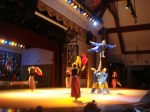
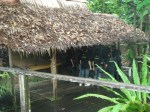
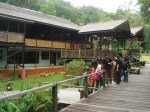
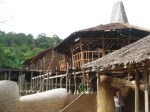
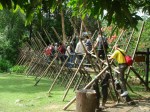
Just like the worldwide final in Imagine Cup, Imagine Cup Malaysia also have a mini half day culture day for all the competitors to enjoy and learn about the culture of the place. Since Imagine Cup 2011 Malaysia is having at Sarawak this year, so we will be exploring the unique culture of Sarawak this year. I’m super duper excited toward this activity because this is also my first time here at Sarawak.

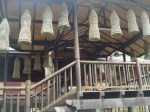
All of the competitors are taken to the Sarawak Culture Village. Finally, after some tough competition in the hotel, we can have something green today! It is a small village purposely build for tourism purpose (Well, it is impossible for us to go all the way into the jungle to see the long house for now). There have Bidayuh Longhouse, Iban Longhouse, Penan Hut, Malay House, Chinese Farmhouse and many more. Other than that, there is also a theater for the multi-cultural performances. All competitors are invited to watch the traditional dance of Sarawak there. In the end, all competitors are invited to join them on the stages too. I’m not good in describing the view of the village through words, why don’t you take a look at the photos I had taken through out the whole activity by yourself.

Aren’t this year Imagine Cup Malaysia is very amazing? Yeah for sure.

by Ooi Keng Siang via Ooiks’s Blog

Imagine Cup 2011 Malaysia Result

So which team shall be flying Malaysia flag on the worldwide final of Imagine Cup 2011 at New York City, US this year? Let me give you the list of all the winner this year in Imagine Cup 2011 Malaysia.

Software Design Category

  • Champion: Cyber Knightz (UCTI)
  • First-runner Up: Filius Educata (UCTI)
  • Second-runner Up: Asia Science (UCTI)

Other Awards

  • Innovation Award: Cyber Knightz (UCTI)
  • Phone 7 Mobile Development Award: V-Real (TARC)
  • Azure Cloud Computing Award: RGBY (UKM)
  • Presentation Superstars Award: Asia Sciences (UCTI)

As you can see, UCTI swap the most prizes in Imagine Cup 2011 Malaysia and they won twice in Imagine Cup Malaysia so far. I bet the university is putting a lot of effort pushing their students in Imagine Cup competition. Well done and great job. Since last year Team HDC went all the way into top 6 of worldwide final of Software Design, so we are expecting the team this year to do even better! We are counting on you team Cyber Knightz to bring back the cup this year.

I shall be tagging along with the team to the worldwide final of Imagine Cup 2011 at New York City, US. I’m selected as one of the 25 Microsoft Student Partners of Social Media Team that will bring you all the most up to date of the event at NYC through social media channel. I can’t wait to be there. New York City, I coming together with Team Cyber Knightz.

Cyber Knightz (UCTI)

Team Members:

  • Tan Jit Ren
  • Chan Wai Lun
  • Ker Jia Chiun
  • Wong Mun Choong

Project Overview: Health3 (Pronounced as Healthy) is a health minded application that targets to improve the health of a cancer patient from the very basic needs of a human, which are food intakes, exercise and emotional needs. By just taking three simple steps provided in our application, which are customize, deploy and start monitoring, cancer patients can find all the useful utilities that will help them in improving their health and increasing the chance of survival.


Filius Educata (UCTI)

Team Members:

  • Mohamed Mahmoud Talaat El Bedwihi
  • Ong Yi Ling
  • Desiree Chow Yik Fong
  • Derek Ooi Jiun Yee

Project Overview: Our project is a one-stop solution that utilizes  web and mobile technologies in order to contribute greatly to the prevention of the serious issue of domestic abuse against women in urban areas. The web application is meant for the women themselves (victims or survivors) and for women’s rights groups. The general public and government bodies are also provided with minimal access. The mobile applications is mainly catered to the women themselves, and to their trusted friends. On the mobile side, our most important feature is the “panic response”. If a women is in an abusive situation, activating this function on her mobile phone will send out notifications to her trusted people and NGOs. Her location is identified using GPS, and an audio recording of what is going on will be stored securely elsewhere (on the cloud). this cloud be used as evidence in the future. In the web application, we provide functionality for the women to connect to each other and share their stories, to connect to the  women;s rights groups, to access available shelters, and to educate themselves on abuse through content that has been provided by the right groups. We also provide functionality fr the NGOs to reach out to the women with education content, shelter detail updates and to maintain statistical data that are to be viewed later on by government bodies. For the general public, we have incorporated a reporting system which they can easily use to anonymously report domestic abuse cases in their neighborhood. With this, we hope contribute in the fight towards gender equality and prevention of abuse towards women.


Asia Science (UCTI)

Team Members:

  • Hamed Mortaji
  • Perinba Selva Nayagi Ramachandran
  • Krishnashree A/P Tamby Raja
  • Ali Arabzadeh Ahaleriz

Project Overview: The project is an enterprise system that manages transmission of power in power substations. The project is divided into 3 major parts: Desktop Applications, Azure Application & Thin Client Application.

by Ooi Keng Siang via Ooiks’s Blog


Imagine Cup 2011 Malaysia – Day 2

Today is the day, the judgment day for all the competitors of Imagine Cup 2011 Malaysia. It all start at 9am sharp. All teams are given 10 minutes to present their idea / solution to the judges at their own booth. 10 minutes presentation at an open area is very tough I can said. I can know how nervous the competitors are through their face expression. Walking around at their own booth with a script while rehearse what they are going to present next.

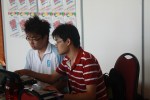
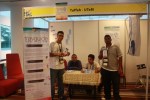
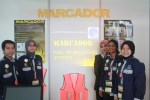
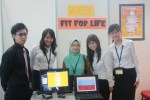
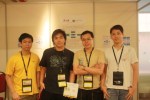
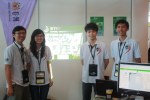
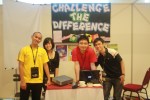
While they are presenting, I was running around to take their photo (see below) and shooting their video. I hardly got time to learn about their great and innovation ideas wish I really wanted. the interesting thing is some of the competitors told me that they actually read my blog for those tips of presentation and follow my blog through out the event. Yeah, that is the reason why I here in the Imagine Cup 2011 Malaysia to blog about this great event happen at Kuching.
I was given a chance to give a talk to the secondary students whom come and learn about the great ideas bring by the top 30 teams. This remind me that some countries that are actually sending secondary students for the Imagine Cup because they bet the others in the local final. So I’m telling the secondary students to think out of the box as they might be the next top 30 who will be presenting at next year Imagine Cup Malaysia. Who’s know right?

After the whole busy morning, the top 6 teams that successfully enter the final has announced after lunch time. They are Filius Educata (UCTI), Excalibur (UTM), Asia Science (UCTI), KCast (KDU), Cyber Knightz (UCTI), RGBY (UKM)! 3 out of 6 teams from UCTI which the university that won the champion last year. I bet the university is putting a lot of effort and support on their students in Imagine Cup. This year, I’m manage to squeeze in and watch the top 6 teams presentation. Each teams blast me off with their nice polished user interface. Well done! The Imagine Cup Malaysia this year is sure getting tougher compare with last year.

For those who didn’t manage to enter the top 6 finalist, don’t give up. I can see you all have a great ideas or solutions but the presentation skill and user interface design skill are just not good enough compare to those who manage to enter the top 6. The world still need you all, the great ideas and solutions you all come out. So don’t give up and I really want to see you all standing on the stage again next year.

Next agenda waiting for us is the grand dinner. That what we are waiting for. The grand dinner with top 3 teams presentation and follow by the result announcement of the Imagine Cup 2011 Malaysia. We got traditional dance performance entertaining us while we all are having our dinner.  All 3 teams from UCTI won the top 3 places in Imagine Cup 2011 Malaysia. Great job UCTI. Want to know the final result of Imagine Cup 2011 Malaysia, check out my next post.

Update:

Thousand apologizes to Team KCast and The Third Cloud from KDU for renaming the photo wrongly.

by Ooi Keng Siang via Ooiks’s Blog